Short answer
The easiest way is Amazon’s free Send to Kindle service (website, email or app): it accepts EPUB files and converts them for you, so you don’t need to convert anything. Convert the EPUB to AZW3 only if you will copy it to the Kindle with a USB cable, because a Kindle can’t open EPUB files copied that way. Older formats such as MOBI, LIT or FB2 need converting either way.
Which way should you use?
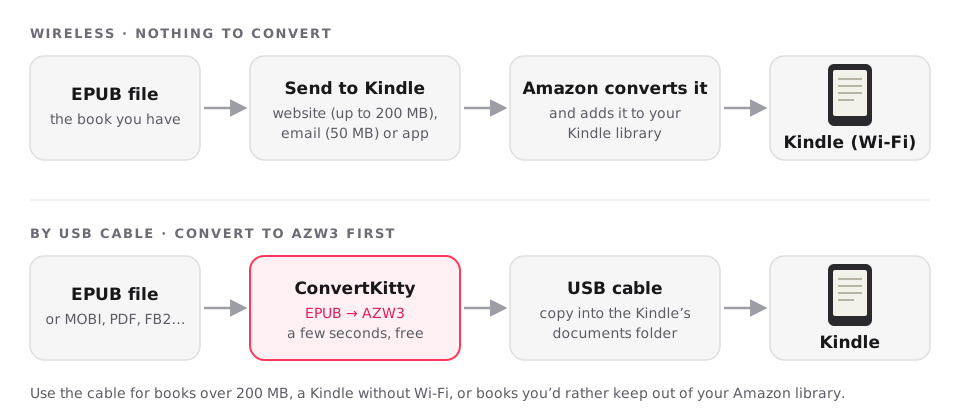
There are five ways to get a book onto a Kindle. Four of them go through Amazon’s free Send to Kindle service, which accepts EPUB and turns it into a Kindle book for you, so nothing needs converting. Only the USB cable needs a Kindle format, because a Kindle can’t open an EPUB file that is simply copied onto it.
| Way | Takes | Largest file | Convert first? |
|---|---|---|---|
| Send to Kindle website | EPUB, PDF, Word (DOC, DOCX), TXT, RTF, HTML, pictures | 200 MB per file | No |
| Email to your Kindle’s address | The same, and ZIP files of them | 50 MB in all, 25 files per email | No |
| Send to Kindle app for Windows or Mac | The same as the website | As the website | No |
| Kindle app on iPhone or Android | The same as the website | Not stated by Amazon | No |
| USB cable | Kindle formats (AZW3, MOBI), PDF, TXT | The Kindle’s free space | Yes: EPUB → AZW3 |
Tip: Most people should use the Send to Kindle website. Use the cable when the book is bigger than 200 MB, when the Kindle has no Wi-Fi, or when you don’t want the book in your Amazon library.
Send an EPUB with the Send to Kindle website
- Open amazon.com/sendtokindle and sign in with the Amazon account your Kindle uses.
- Drag the EPUB onto the page, or click to choose it. Files up to 200 MB are accepted.
- Turn on Add to your library, so the book reaches every Kindle and Kindle app on your account, and click Send.
- Amazon converts the book, usually within minutes. It appears in your Kindle’s library the next time the Kindle connects to Wi-Fi.
Email an EPUB to your Kindle
Every Kindle and Kindle app has its own Send to Kindle email address. Find it on Amazon under Manage Your Content and Devices → Devices, by choosing your Kindle.
- On Amazon, open Manage Your Content and Devices → Preferences → Personal Document Settings, and add the address you will send from to the Approved Personal Document E-mail List. Up to 15 addresses can be approved.
- Write an email to your Kindle’s address and attach the EPUB. No subject or text is needed.
- Send it, with the Kindle connected to the internet. Amazon keeps trying to deliver it for up to 60 days.
Tip: One email can carry up to 25 files and 50 MB in all; Amazon also accepts a ZIP of several books. Your own email provider may allow less (a personal Gmail account sends up to 25 MB), so use the website for bigger books.
Send an EPUB from an iPhone or Android phone
If Kindle doesn’t appear when you share, open amazon.com/sendtokindle in your phone’s browser instead: it works the same way on a phone.
- Install the Kindle app and sign in with the same Amazon account as your Kindle.
- Find the EPUB in the Files app (iPhone) or your Downloads (Android) and tap Share.
- Choose Kindle and send. The book goes to your Kindle library and appears on the Kindle as well.
Copy books over a USB cable (convert to AZW3 first)
A cable needs no internet, works for books of any size, and keeps the book out of your Amazon library. But the Kindle only opens Kindle formats this way, so turn the EPUB into AZW3 first, with the converter at the top of this page.
- Drop the EPUB at the top of this page (it’s already set to EPUB to AZW3), click Convert and download the AZW3 file.
- Connect the Kindle to your computer with its USB cable. On Windows it appears in File Explorer as Kindle, with no app needed.
- Open it and copy the AZW3 file into the documents folder.
- Tap Disconnect on the Kindle’s screen, or simply unplug the cable. The book appears in the library, with its cover.
Tip: On a Mac, Kindle Scribe and Kindles released in 2024 or later need Amazon’s free Send to Kindle app for Mac to copy files: open it and choose Tools → USB File Manager (macOS 12 or newer). Older Kindles show up as a drive without it.
Which conversion do you need?
It depends on the file you have and how you will send it. Each link opens that converter.
| You have | To send with Send to Kindle | To copy over USB |
|---|---|---|
| EPUB | Send it as it is | Convert EPUB to AZW3 |
| MOBI | Convert MOBI to EPUB (MOBI isn’t accepted any more) | Copy it as it is |
| AZW3 | Convert AZW3 to EPUB | Copy it as it is |
| Send it as it is: pages keep their look | Copy it as it is, or convert PDF to AZW3 so the text reflows | |
| Word (DOCX) | Send it as it is | Convert DOCX to AZW3 |
| LIT, PDB, FB2, RTF | Convert to EPUB (e.g. LIT to EPUB, FB2 to EPUB) | Convert to AZW3 (e.g. LIT to AZW3) |
We tested it: six classic books, EPUB to AZW3
To see what to expect, we converted six free books from Project Gutenberg from EPUB to AZW3 on ConvertKitty’s server, with the same settings your books get. All six converted at the first try, every one kept its cover, and the longest took 9.1 s. The AZW3 files are a little larger than the EPUBs: AZW3 stores the text in a Kindle-friendly way, and the pictures stay as they were.
| Book | EPUB | AZW3 | Time to convert | Cover kept |
|---|---|---|---|---|
| Alice’s Adventures in Wonderland | 0.2 MB | 0.3 MB | 1.7 s | Yes |
| Frankenstein | 0.4 MB | 0.5 MB | 3.4 s | Yes |
| The Adventures of Sherlock Holmes | 0.4 MB | 0.5 MB | 4.1 s | Yes |
| A Tale of Two Cities (illustrated) | 7.9 MB | 8.1 MB | 6.1 s | Yes |
| Pride and Prejudice (illustrated) | 24.9 MB | 25.1 MB | 6.5 s | Yes |
| Moby Dick | 0.7 MB | 1.1 MB | 9.1 s | Yes |
Tip: Tested on 8 November 2026 with calibre 6.13.0. The time is the conversion itself; uploading the book comes on top and depends on your connection. A MOBI converted to EPUB in under a second.
AZW3, MOBI or KFX: which Kindle format?
AZW3 (also called KF8) is the Kindle format to make yourself. It keeps chapters, a working table of contents, embedded fonts and modern layout, and every Kindle sold in the last decade reads it.
MOBI is the older Mobipocket format. Kindles still open MOBI files copied over USB, but MOBI is no longer on Amazon’s list of files Send to Kindle accepts (Amazon dropped it in 2022), and it can’t do much of the layout AZW3 can.
KFX is the format Amazon uses for books bought in the Kindle store. Only Amazon’s own tools make it; for your own books, AZW3 gives the same reading experience.
Books that can’t be converted: DRM, Libby and store books
Most books bought from a store, and most library loans, are locked with DRM (copy protection). A locked book can’t be converted by ConvertKitty, and ConvertKitty does not remove DRM. Send to Kindle refuses password-protected and encrypted files too.
Library loans from Libby are a special case: in the United States, most of them can go straight to a Kindle. In Libby, open Shelf → Loans, tap Read With… and choose Kindle; Amazon’s site opens, and Get Library Book sends it to your Kindle (Libby Help). Outside the US, read them in the Libby app or on an e-reader that supports library loans.
What you can convert: books without DRM, such as free classics from Project Gutenberg or Standard Ebooks, books sold DRM-free by their authors or publishers, and your own documents.
Send to Kindle error codes, and what to do
When a book can’t be delivered, Amazon emails you an error code. These are the ones people meet most often, from Amazon’s own list.
| Code | What it means | What to do |
|---|---|---|
| E001 | Unsupported file format | Convert the book to EPUB first (e.g. MOBI to EPUB), or check it isn’t password-protected. |
| E002 | Invalid or damaged MOBI file | Convert MOBI to EPUB and send the EPUB instead. |
| E004 | Password-protected file | Remove the password (or DRM) first; locked files can’t be sent. |
| E005 | Damaged or encrypted PDF | Make sure the PDF opens on your computer and has no password. |
| E006 | More than 25 files in one email | Split them over several emails. |
| E007 | A file is larger than 50 MB | Use the Send to Kindle website (200 MB), or convert to AZW3 and copy it by USB. |
| E009 | No attachment | Attach the book and send again. |
| E013 / E016 | Parts of the book don’t suit Kindle’s layout | Amazon still delivers it, with fewer features. Large tables, SVG pictures and equations are the usual cause. |
| E014 | Sender not on your approved list | Add the address under Personal Document Settings and send again. |
| E999 | Amazon’s internal error | Try again later; nothing is wrong with your file. |
When the book doesn’t arrive, or looks wrong
- The book never shows up: check that you sent it from an address on the approved list (otherwise you get error E014), that the Kindle is on Wi-Fi, and that “Add to your library” was on.
- Amazon says the file couldn’t be converted: the EPUB may be damaged or locked with DRM. Try converting it to AZW3 here and copying it over USB; if that fails too, the file itself is the problem.
- The text of a PDF is tiny: a Kindle shows a PDF page by page, at the page’s own size. Convert the PDF to AZW3 or EPUB so the words reflow to fit the screen; this works best for plain, one-column text.
- Pictures are missing or the layout is jumbled: the book uses features e-readers lack (large tables, SVG pictures, equations). AZW3 keeps more of the layout than MOBI.
- The Kindle doesn’t appear on a Mac: newer Kindles need the Send to Kindle app for Mac (Tools → USB File Manager), or use the website instead.
How the converter on this page works
E-books are converted on ConvertKitty’s server with calibre, the free e-book software, using its standard settings. Your file is sent over an encrypted connection, a conversion may run for up to 10 minutes (most books take seconds), and both the book and the result are deleted 72 hours later.
Books up to 1 GB are accepted, and you can convert several at once, then download them all as one ZIP. Everyone gets 50 free credits a day, with no account needed. Conversions on our server use one credit per started minute of work, so most cost a single credit. Credits reset at midnight UTC.
Frequently asked questions
Can a Kindle read EPUB files?
Yes, through Send to Kindle: Amazon accepts EPUB uploads by website, email and app, and converts them into Kindle books. A Kindle can’t open an EPUB copied onto it with a USB cable, though; for that, convert the EPUB to AZW3 first.
How do I send an EPUB to my Kindle by email?
Email the EPUB as an attachment to your Kindle’s Send to Kindle address, from an address on your Approved Personal Document E-mail List. One email can carry up to 25 files and 50 MB in all, and Amazon keeps trying to deliver it for up to 60 days while the Kindle is offline.
How do I send an EPUB to my Kindle from an iPhone or Android phone?
Open the EPUB in the Files app or your Downloads, tap Share and choose Kindle; the Kindle app must be installed and signed in. Or open amazon.com/sendtokindle in the phone’s browser and upload it there.
How do I put an EPUB on a Kindle with a USB cable?
Convert the EPUB to AZW3, connect the Kindle to your computer, and copy the AZW3 file into the Kindle’s documents folder. On a Mac, Kindle Scribe and Kindles from 2024 onwards need Amazon’s Send to Kindle app for Mac (Tools → USB File Manager) to copy files.
Should I convert EPUB to AZW3 or MOBI for my Kindle?
Convert to AZW3. It is the newer Kindle format (KF8): it keeps chapters, fonts and modern layout, and every Kindle from the last ten years reads it. MOBI is only worth making for a very old Kindle.
Does Send to Kindle still accept MOBI files?
No. MOBI is no longer on Amazon’s list of files Send to Kindle accepts; Amazon dropped it in 2022. Convert the MOBI to EPUB and send that, or copy the MOBI to the Kindle with a USB cable, which still works.
How long does converting an EPUB to AZW3 take?
A few seconds. In our test of six classic books on ConvertKitty’s server, each took between 1.7 s and 9.1 s, including a 25 MB illustrated edition of Pride and Prejudice, and all kept their covers. Uploading the book comes on top.
Can I convert Libby or Kindle store books?
No. Library loans and store-bought e-books are locked with DRM, and ConvertKitty does not remove DRM. In the United States, Libby sends most loans straight to a Kindle: tap Read With… and choose Kindle.
What is the file size limit for Send to Kindle?
The Send to Kindle website takes files up to 200 MB each. Email takes up to 50 MB in all and 25 files per message. For anything larger, convert the book to AZW3 and copy it over a USB cable, which has no limit beyond the Kindle’s free space.
What does Send to Kindle error E999 or E014 mean?
E999 is an internal error at Amazon: try again later, as nothing is wrong with your file. E014 means the email came from an address that isn’t on your Approved Personal Document E-mail List: add it in Personal Document Settings and send again.
Is converting e-books for Kindle on ConvertKitty free?
Yes. Everyone gets 50 free credits a day, with no account needed. Conversions on our server use one credit per started minute of work, so most cost a single credit. Credits reset at midnight UTC. Books are converted on our server with calibre and deleted 72 hours later.
Sources
- Send to Kindle · Amazon
- Learn about sending documents to your Kindle library (file types, 200 MB limit) · Amazon Help
- Learn how to use your Send to Kindle email address (25 files, 15 senders, 50 MB) · Amazon Help
- Troubleshoot Send to Kindle errors (error codes) · Amazon Help
- Connect, browse and transfer files on your Kindle (USB, Mac app) · Amazon Help
- Personal document file types (Word documents accepted) · Amazon Help
- Reading Kindle books on a Kindle e-reader (U.S. only) · Libby Help
- Kindle File Format · Wikipedia
- Free e-books used in our test · Project Gutenberg
- calibre e-book manager · calibre
Converters for this
- EPUB to AZW3 Converter
- EPUB to MOBI Converter
- MOBI to EPUB Converter
- MOBI to AZW3 Converter
- AZW3 to EPUB Converter
- PDF to AZW3 Converter
- PDF to EPUB Converter
- DOCX to AZW3 Converter
- DOCX to EPUB Converter
- LIT to EPUB Converter
- FB2 to EPUB Converter
- EPUB to PDF Converter
More
Updated